XE Wallet for iPhone and Android
Your XE accounts on your phone. Send and receive, vote in the XE DAO, set what AI agents may spend, and approve what the XE extension and the Web Wallet ask you to sign.
- Public TestFlight beta: coming soon
- Android build: coming soon


- Runs on
- iOS 17, Android 11 or newer
- Networks
- XE Sim and the XE testnet
- Every signature
- A hold, then Face ID or your screen lock
- Keys kept in
- Secure Enclave or Android Keystore
A payment, start to finish
Every payment is reviewed on the phone before it is signed, with the whole address in front of you.
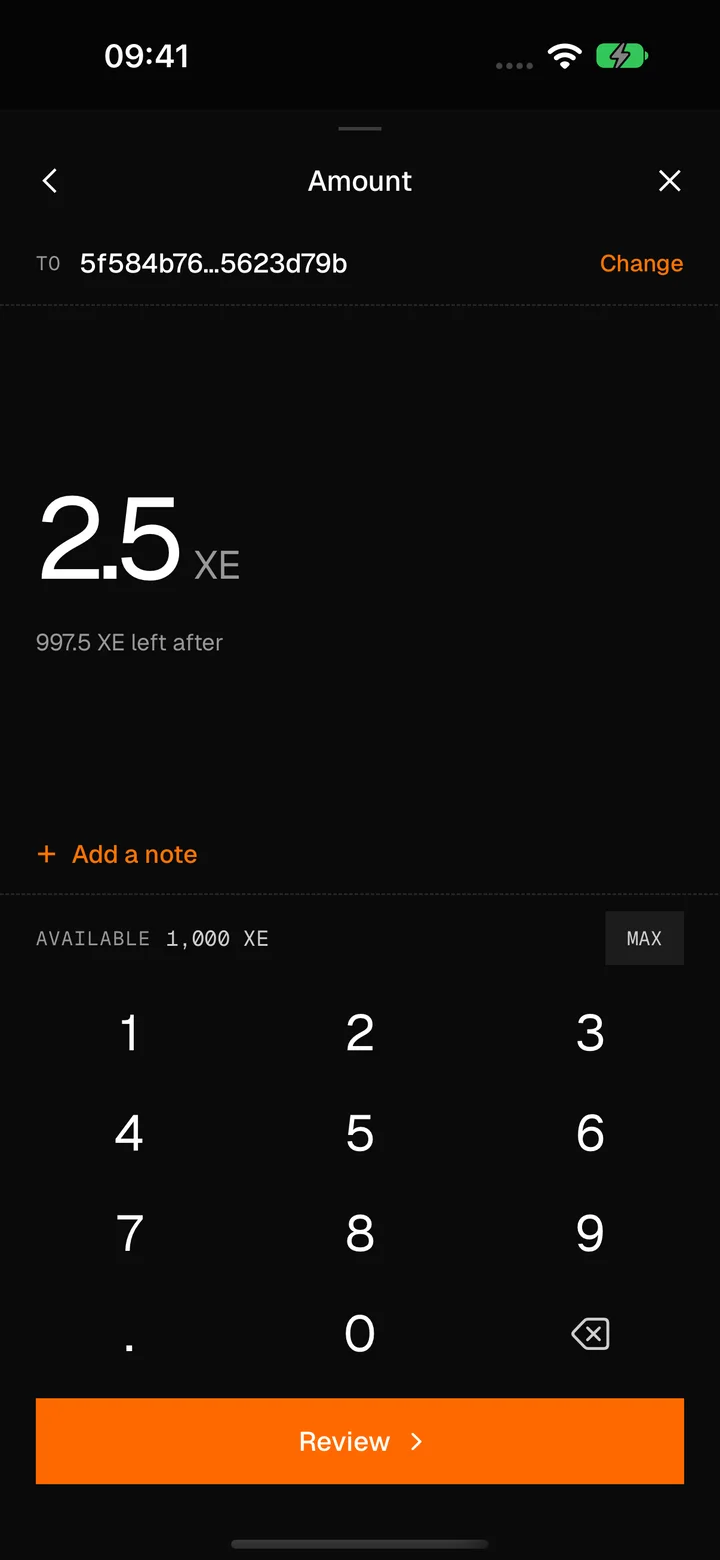
Enter the amount
Paste an address or scan its code, then type the amount. The keypad shows what is left after.
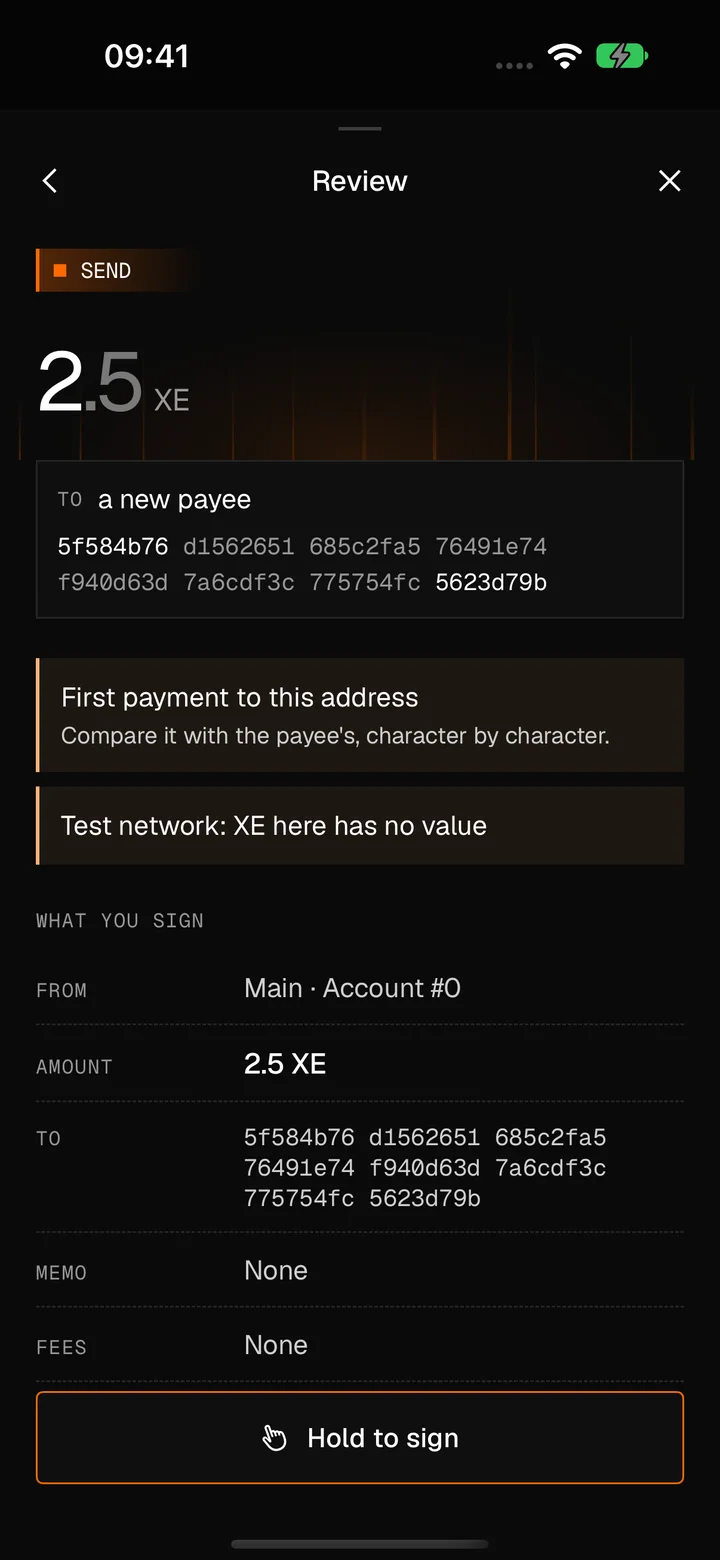
Check what you sign
The review lists every field: who pays, the amount, the whole address, the memo and the fee. A first payment to an address says so.
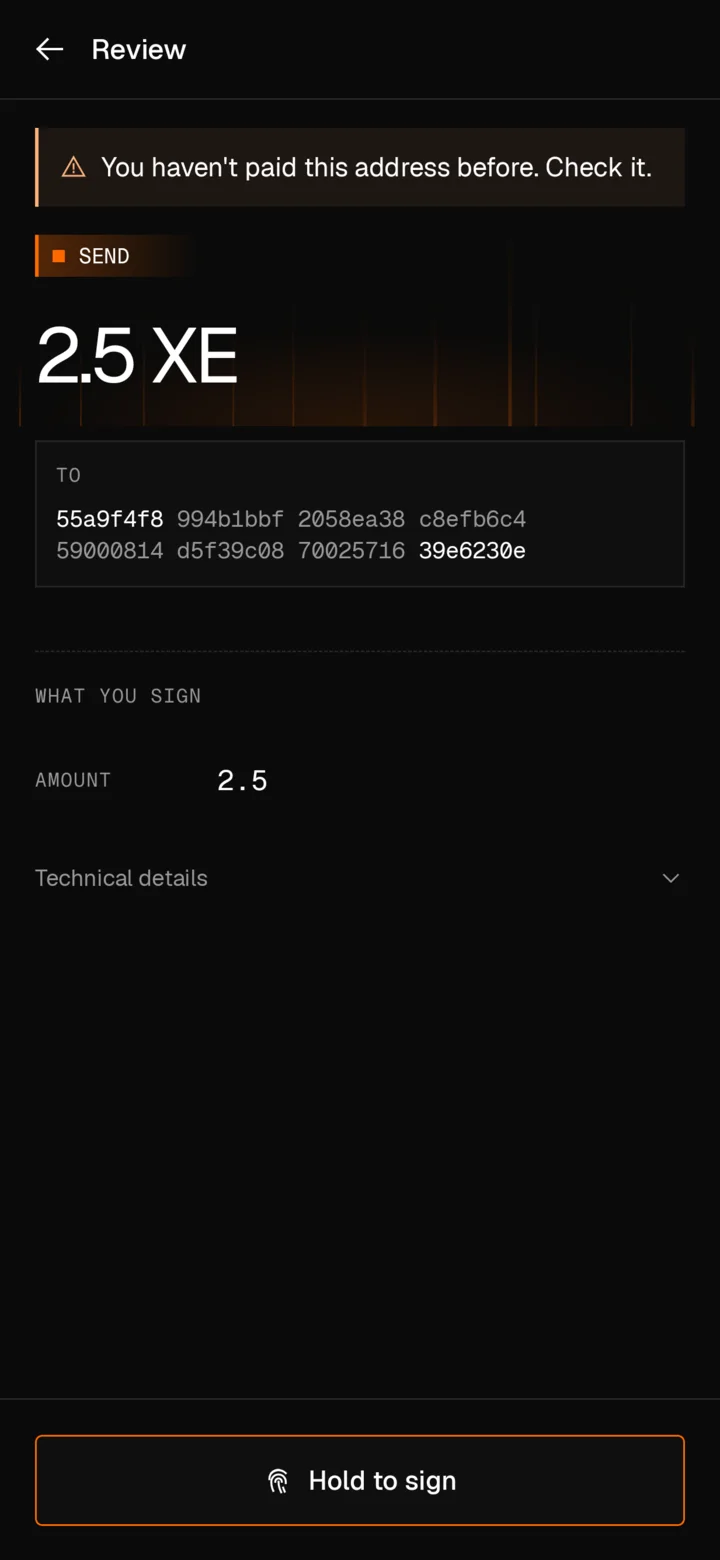
Hold to sign
Hold the button, then Face ID or your passcode. If what you sign changes while you hold, it stops and says why.


To receive, show your address as a code or share it as a link. On XE Sim, “Get test XE” sends you free test XE.
What AI agents may do with your account
An agent such as Claude Code connects through XE’s MCP server, and asks you first. You decide what it may do, and you can end it at any time.


It asks to connect
The phone shows who asks, through which site, and what for: to see the account, to ask you for payments, or to pay on its own within limits.
You set the limits
Per payment, per day, to which addresses, and until when. The network’s nodes enforce them.
Requests wait for you
Signed in to the XE AI Platform, an agent’s payment request waits in Approvals until you hold to approve it.
You can end it
Connected apps & agents lists every agent, what it may do and what it spent today. Ending its access revokes its spending key on the network.
A signer for the extension and the Web Wallet
Use XE in the browser and keep the key on your phone. Each request comes to the phone, and you approve it there.
Pair once
Scan the code the XE extension or the Web Wallet shows. Requests then reach the phone through XE Connect, encrypted end to end: the relay between them can’t read them.
Approve each one
A request opens on the phone with the site’s name as the site gives it. Nothing is signed until you hold to approve.
Keep an account’s key
With “Secure this account”, the Web Wallet moves an account to a new one whose key stays on the phone. The wallet can then ask the phone to open that account or change its key; a site you only visit never can.
End it from the phone
Connected apps & agents lists what is paired. Disconnect a site, or unpair the extension.


Vote in the XE DAO
Read the proposals, vote and change your vote, open a proposal or write to the DAO. Each is reviewed and signed like a payment.


Opening a proposal costs a 10 XE fee. On XE Sim the votes go to a sandbox DAO that decides nothing and may be reset.
Works with the rest of XE
One recovery phrase gives the same accounts in each of them.
- XE Vault
Add its accounts by scanning their code. XE Wallet shows each request as a QR code, XE Vault signs it offline, and XE Wallet reads the answer back.
- Web Wallet
Pair the phone as its signer, or let the phone keep an account’s key.
- Browser extension
Pair the phone, then approve the extension’s requests on it.
- Ledger app
The same recovery phrase gives the same accounts on a Ledger.
- MetaMask Snap
The same recovery phrase gives the same accounts in MetaMask.
Get the beta
XE Wallet runs on XE Sim and the XE testnet. XE there has no value, and the app offers no mainnet yet.
iPhone
Public TestFlight beta: coming soon
iOS 17 or newer.
Android
Android build: coming soon
Android 11 or newer.
Questions
Do I need an account?
No. Create a wallet and write down its 12 or 24 words, or restore a phrase you already have.
Where is my key kept?
On the phone, encrypted under the Secure Enclave on iPhone or in the Android Keystore, and left out of the phone’s backups. Each signature needs Face ID, your fingerprint or your passcode.
What if I lose my phone?
Restore your recovery phrase in XE Wallet on another phone, in the Web Wallet or in the extension. Without the phrase, the accounts on that phone can’t be recovered.
Can an agent spend more than I allowed?
Its limits are set on the network with its key, and XE’s nodes refuse a payment over them. Ending its access revokes the key.
What does the app send, and to whom?
The public addresses it follows, to XE’s nodes. When you sign in to the XE AI Platform, it uses that account. It has no analytics and declares no tracking.
Has it been audited?
No. There has been no security audit yet, and the source is not public yet.
Found a problem?
Write to info@internml.com with what you did, what you expected and, if you can, a screenshot.